Image Touch Ups
Altered Images
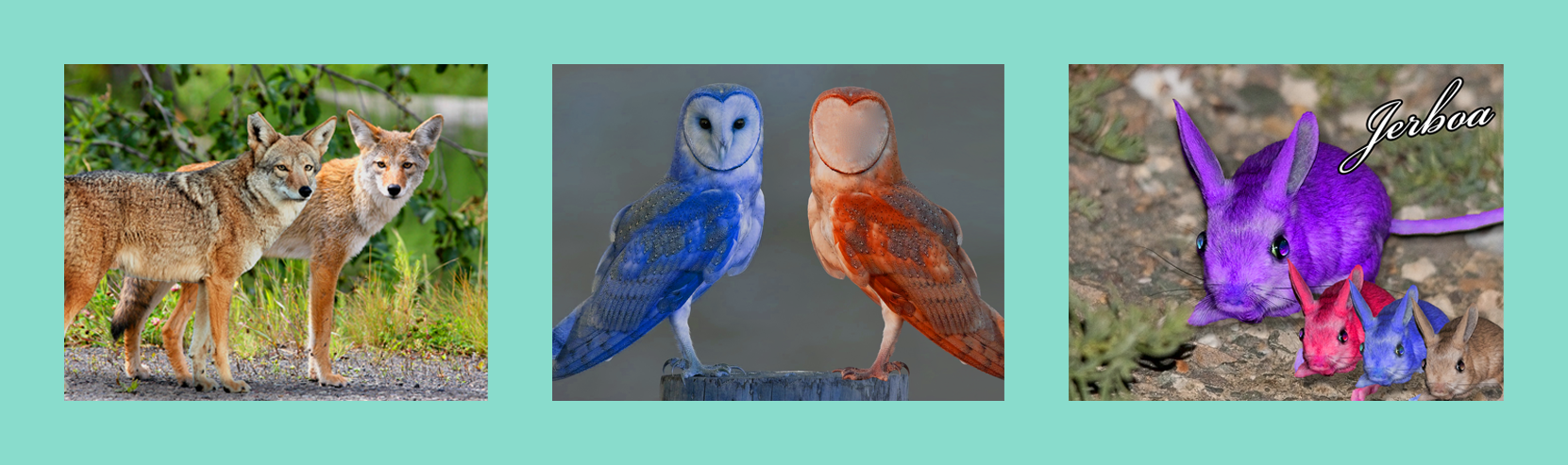
This was another one of my first Photoshop assignments, we were tasked to take random images and edit them in any way we liked. For the coyote image, I added a second coyote into the image from a different image in hopes of making it seem like at a glance that it is supposed to be there. I also changed the hue/saturation to make the screen have more color since it looked rather bland at first. For the jerboa image, I duplicated the original jerboa three times and changed each one's color and size. I also included the text jerboa to show what animal they are since people could possibly not know what type of animal it is. For the barn owl image, I mirrored the barn owl to create a second, as well as elongated the log they were on. Afterwards, I changed each of their colors blue for the log and left barn owl and red for the right barn owl. As an additional touch, I used spot heal to remove the right owl's facial features due give a sort of contrast between the two owls. Finally, I put all the images into a collage with equal spacing from each other and the border around it while also making sure their sizes were equal.
Side-By-Side Images
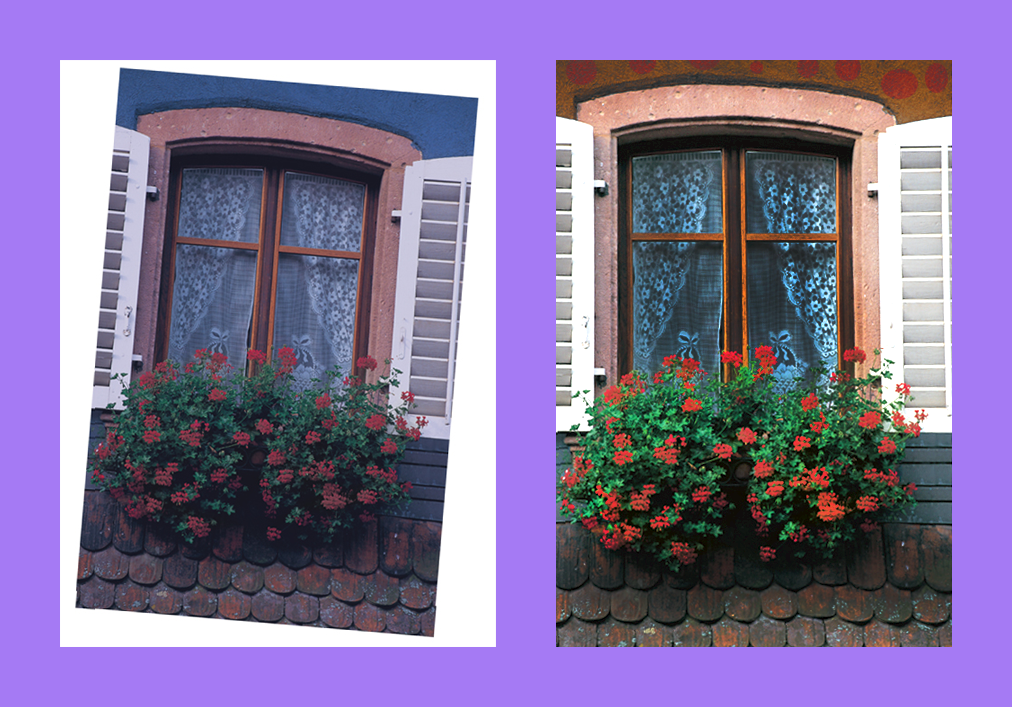
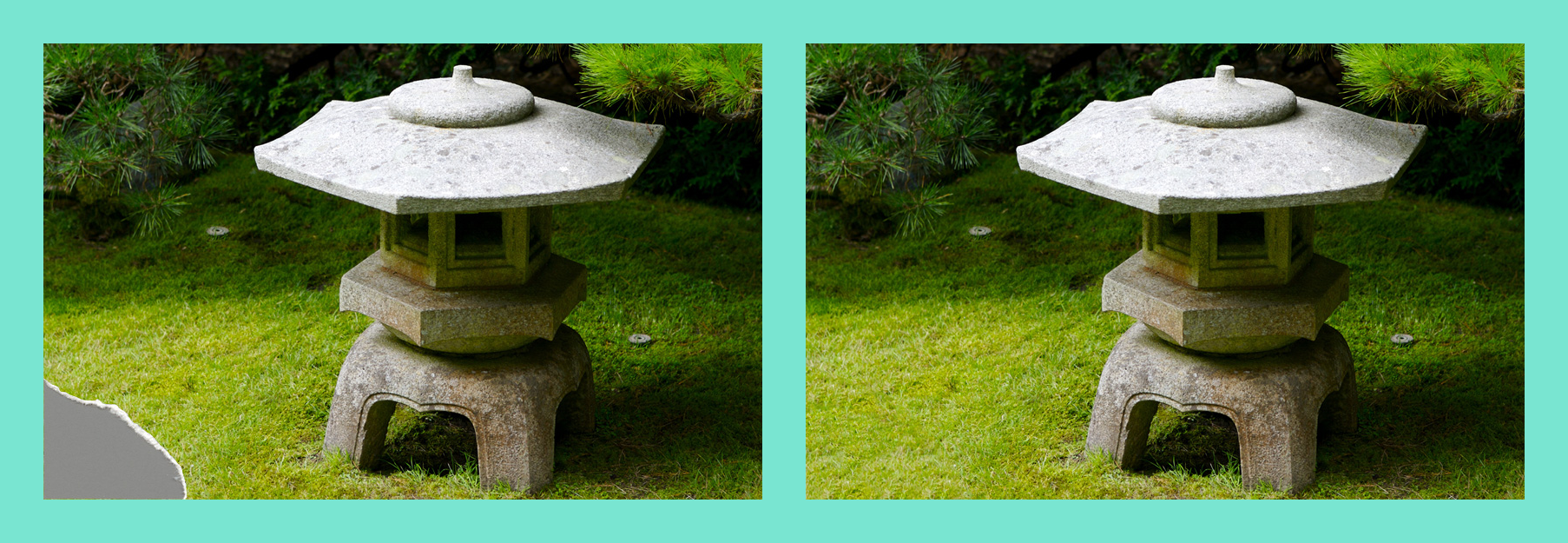
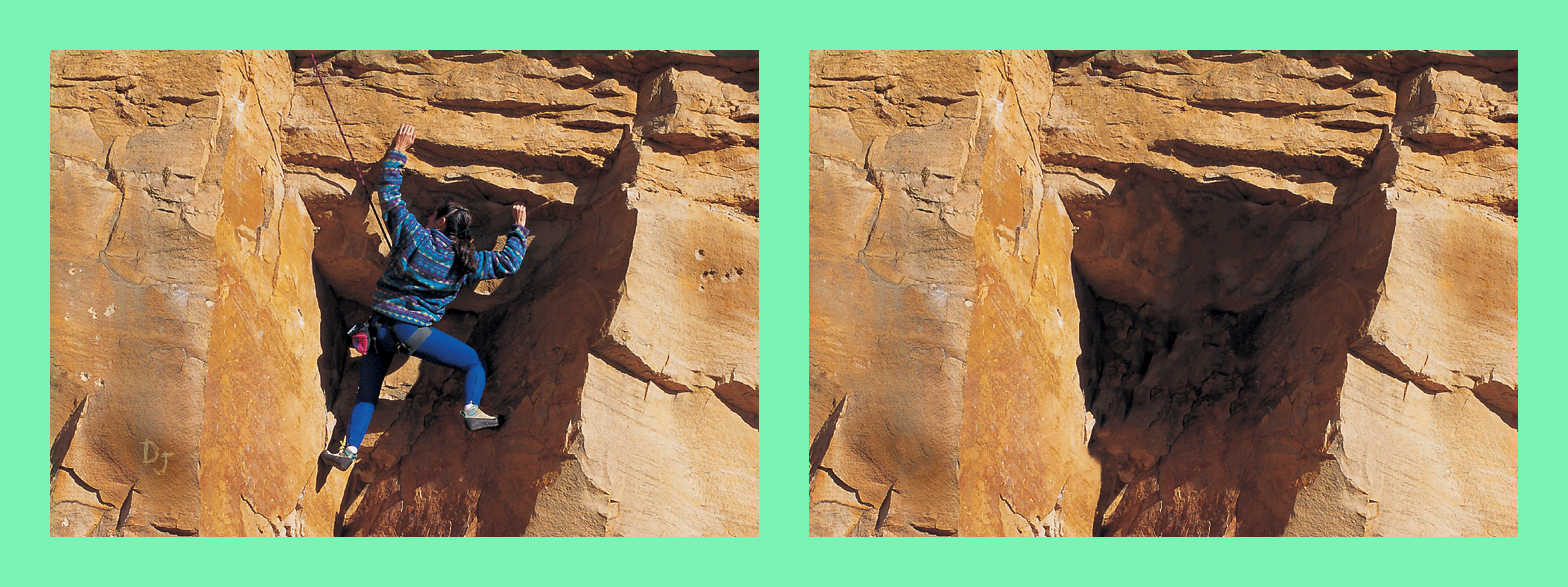
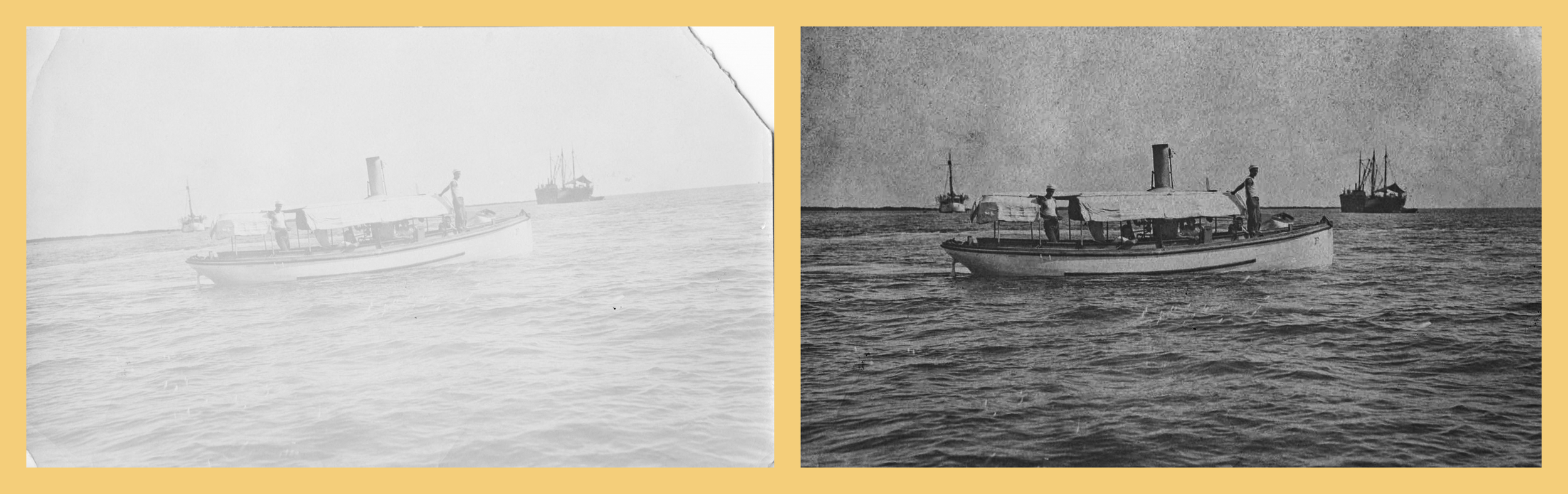
This was one of my first assignments in Photoshop. We were given a selection of images and were told to touch them up to make a new image. I retouched the photos of the lantern, window, faded photo, and mountain climber. For the window and lantern, I followed closely to the posted videos; however, I also used the spot heal tool when editing the lantern photo. For the mountain climber photo, I removed the mountain climber entirely also using the spot heal tool. For the faded photo I played around with more spot healing, different photo filters, cropping the photo, and making the photo darker in general. For the side-by-side comparison, I increased the canvas size of the photo to fit in the first photo.